> ## Documentation Index
> Fetch the complete documentation index at: https://v3.selectfromuser.com/llms.txt
> Use this file to discover all available pages before exploring further.
# 첫 프로젝트 만들기
SAPP의 모든 작업은 프로젝트(Project) 안에서 이루어집니다. 프로젝트는 여러 업무나 서비스에서 사용하는 앱들과 운영 환경을 함께 관리하는 공간입니다. 예를 들어 다음과 같은 앱들을 프로젝트 안에서 만들 수 있습니다.
* 사내 업무 포털
* 파트너 센터
* 고객 지원 도구
* 운영 어드민
* AI 업무 도우미
하나의 프로젝트에는 여러 개의 앱을 배포할 수 있으며, 회원, 권한, 인증, API, 리소스 등 운영에 필요한 기능을 함께 관리합니다.
## 프로젝트 생성하기
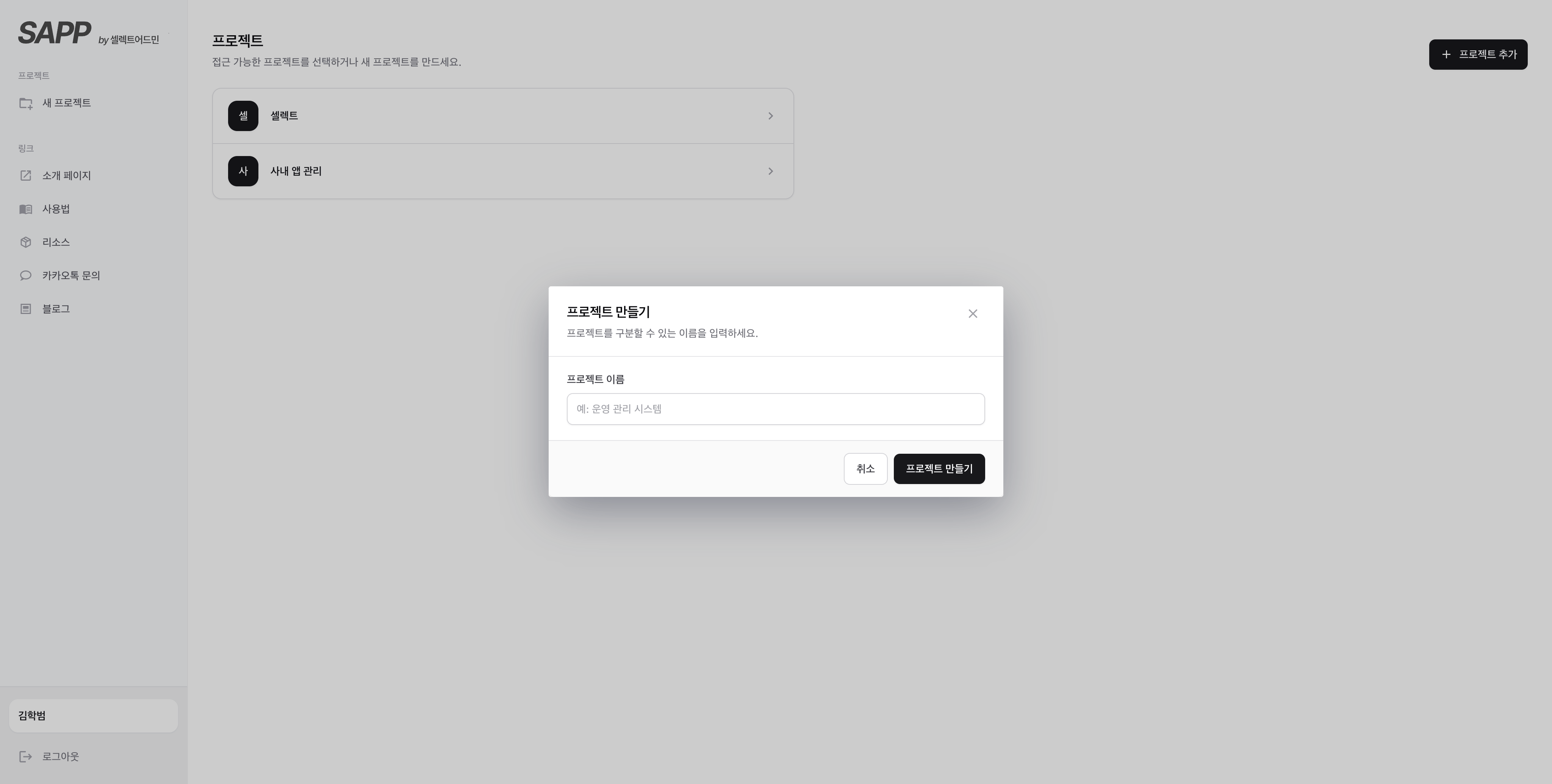
로그인 후 전체 프로젝트 화면에서 새 프로젝트를 추가합니다. 프로젝트 이름을 입력하면 바로 프로젝트가 생성됩니다. 생성한 프로젝트의 이름과 기본 설정은 언제든지 변경할 수 있습니다.
 ## 프로젝트 홈 둘러보기
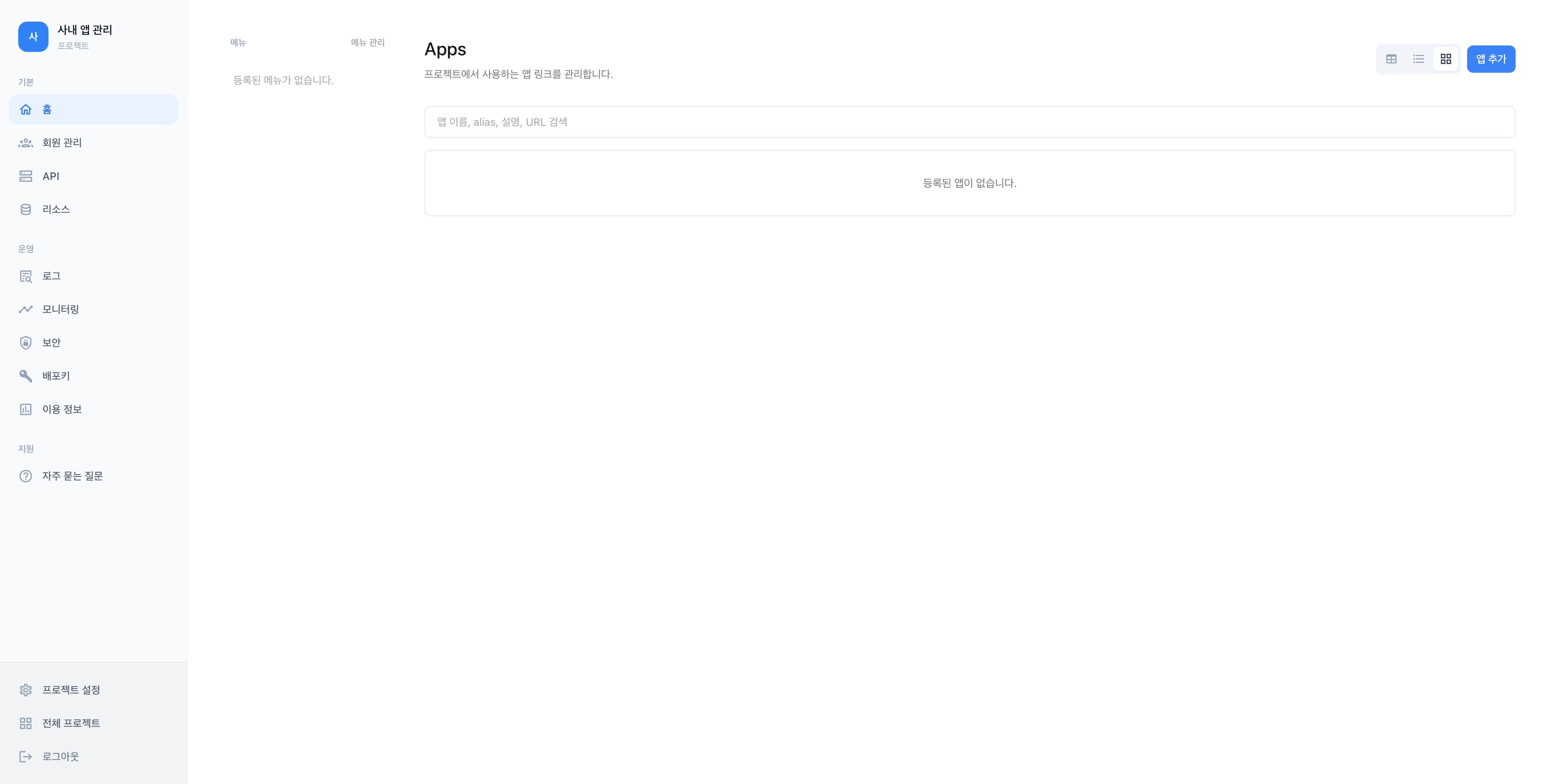
프로젝트를 생성하면 프로젝트 홈으로 이동합니다. 여기에서는 프로젝트에 배포한 앱을 확인할 수 있으며, 앱, 회원, API, 리소스 등 프로젝트에서 사용하는 주요 기능도 함께 볼 수 있습니다.
## 프로젝트 홈 둘러보기
프로젝트를 생성하면 프로젝트 홈으로 이동합니다. 여기에서는 프로젝트에 배포한 앱을 확인할 수 있으며, 앱, 회원, API, 리소스 등 프로젝트에서 사용하는 주요 기능도 함께 볼 수 있습니다.
 ## 다음 단계
이제 첫 번째 프로젝트가 준비되었습니다. 다음 페이지에서는 HTML 파일이나 ZIP 파일을 업로드하거나 SAPP CLI를 이용하여 첫 번째 앱을 배포해보겠습니다.
## 다음 단계
이제 첫 번째 프로젝트가 준비되었습니다. 다음 페이지에서는 HTML 파일이나 ZIP 파일을 업로드하거나 SAPP CLI를 이용하여 첫 번째 앱을 배포해보겠습니다.